User Guide
Everything you need to get started.
Updated 2026.07.11Learn the basics of using Kanau.
What is Kanau?
Kanau is a calculation notebook app for creators. It records material costs and working time for each of your works, helping you calculate production costs.
You can start using it right away without creating an account (if you register later, your existing data carries over and syncs across devices). Sign-in with email, Google, and Apple is supported.
Note: This app stores data in an online database, so an internet connection is required.
App Structure
When you open the app, you’ll see the project list first. This is the home screen of the app.
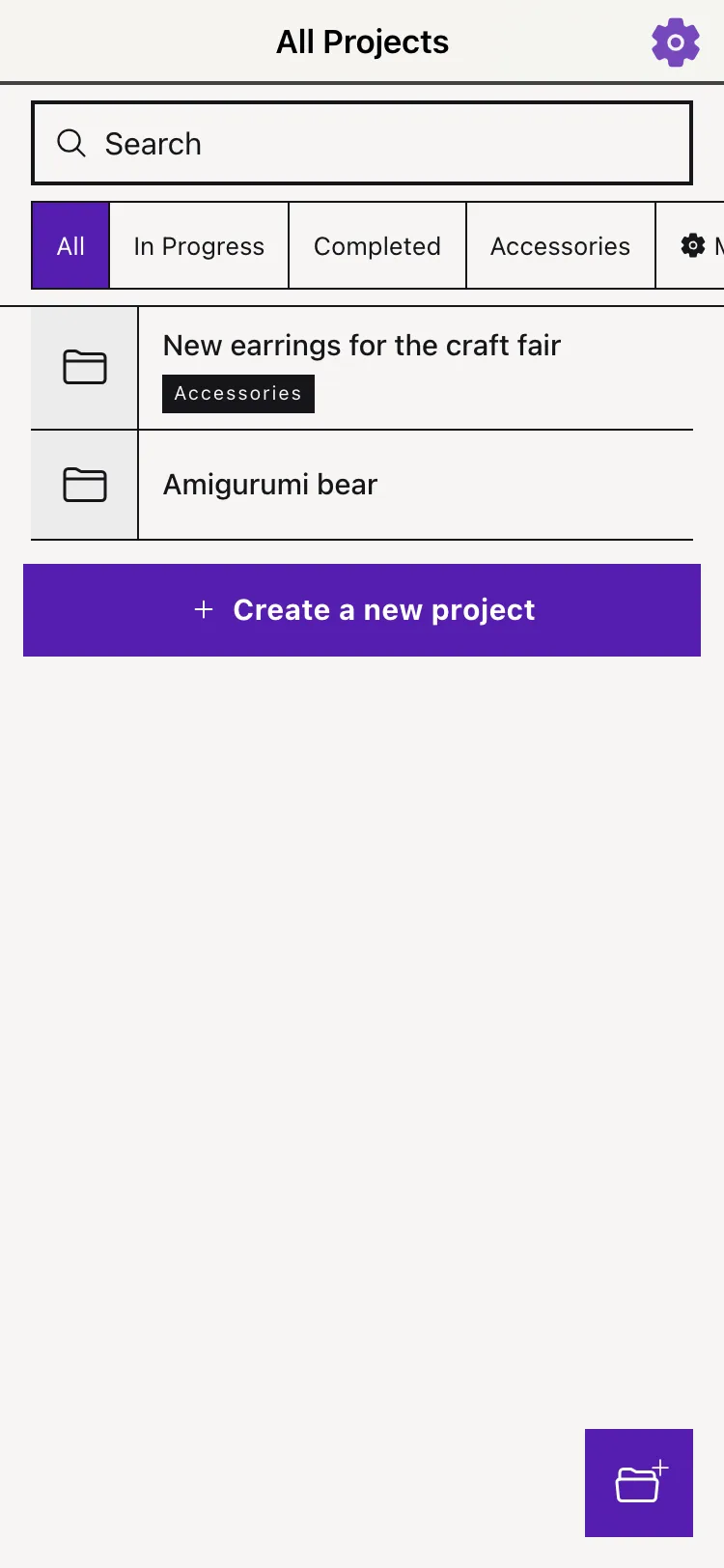
- Project list — Shows all your projects. Use the chips at the top (All / tags / Published) to filter them
- Project page — Opens when you tap a project in the list. This is where you add and edit items
- Settings — Open via the gear icon at the top right of the project list
Create a Project
Create a new project with the “+” button at the bottom right of the project list. You can manage each work or product as a separate project.
Only the project name is required at creation. Comments and a thumbnail image can be set afterwards by tapping the top of the project page.
- Name / comment — Tap the displayed text to switch to edit mode; your input is saved automatically when you finish
- Thumbnail image — Take a photo, pick from your photo library, or (on the web version) paste from the clipboard
- URLs in comments — Paste a URL into the comment and it appears as a link chip below the comment; tap it to open the page
Add Items
Register the materials and work processes used in your project as “items.” Add them with the “Add Item to Project” button on the project page.
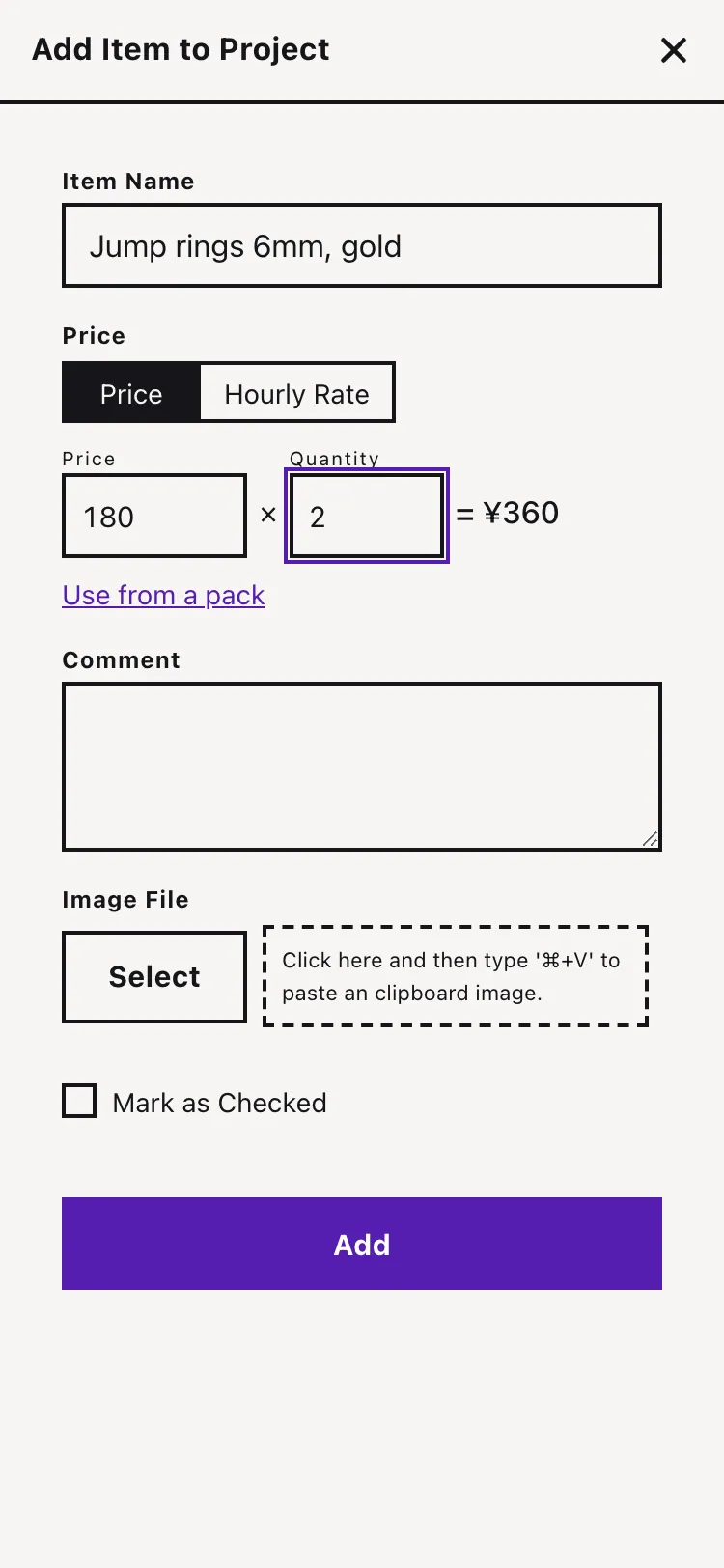
Basic fields
- Item name (*)
- Price and quantity (see “Price and Time Calculation” below)
- Images (* — multiple images can be attached)
- Comment
*To save an item, you must enter either an item name or an image.
For links such as the page where you bought a material, paste the URL into the comment field. It is detected automatically and displayed as a link chip.
Note: Each project can hold up to 50 items.
Price and Time Calculation
Each item has a one-line formula for calculating its subtotal. There are two calculation modes: “Price” and “Hourly Rate.” You can also leave prices empty and use items purely as recipe notes.
Price mode
The basic formula is “Price × Quantity = Subtotal.”
When you use only part of a package, turn on “Use from a pack” to add “÷ Pack Size” to the formula: “Price ÷ Pack Size × Quantity = Subtotal” calculates the cost of just the amount you used.
Example: you bought a 12-piece pack for 500 yen and used 2 pieces
- Price: 500
- Pack Size: 12
- Quantity: 2
You can add a free-form unit (cm, g, etc.) to the pack size, so the same formula also covers length and weight — for example, ribbon sold at 300 yen per 100 cm, of which you used 15 cm. When both price and pack size are entered, the per-unit price is shown as a hint.
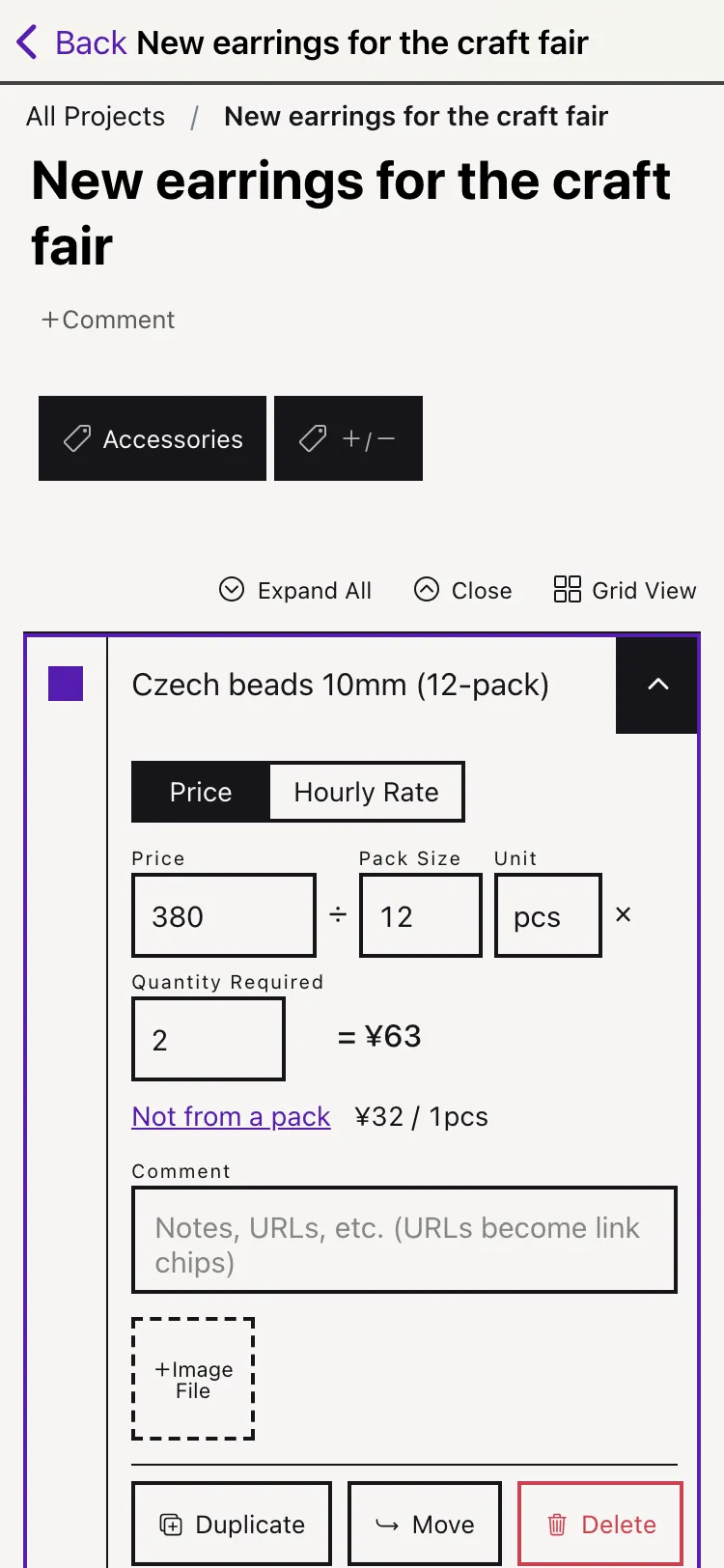
*You can enter a quantity larger than the pack size (e.g. enter “20” if you used 20 pieces from 12-piece packs).
Hourly Rate mode
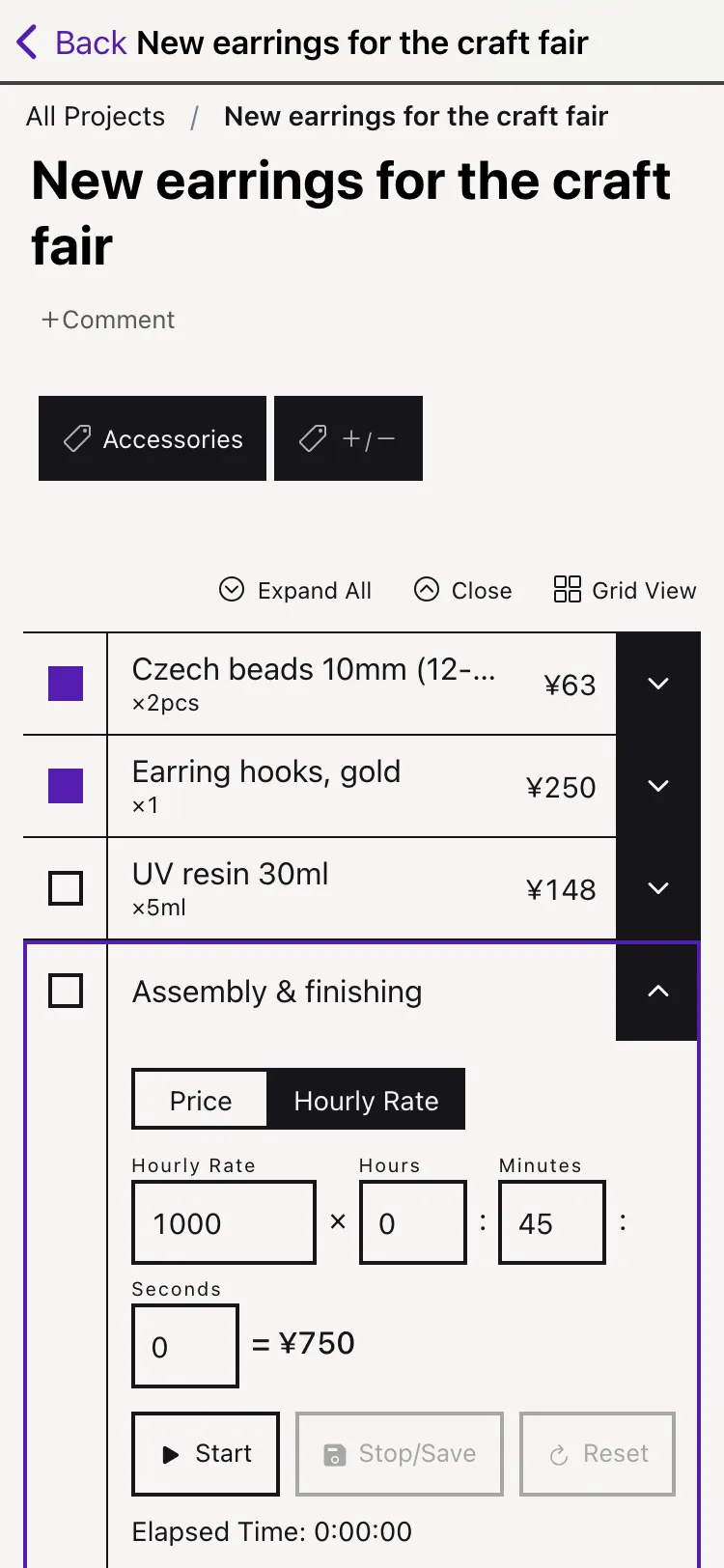
“Hourly Rate × Time = Subtotal” calculates your labor cost. Enter time as hours : minutes : seconds, or use the built-in timer and record the measured time directly.
- Tap “Start” to begin measuring, and “Stop/Save” to record the time to the item
- If the item already has recorded time, the measured time is added to it
- If you don’t want to keep a measurement (e.g. you forgot to stop the timer), tap “Reset” to discard it
*You can also leave the hourly rate empty and use this mode just to track working time.
Editing and Autosave
Items are edited in place — there is no separate edit screen. In list view, open an item’s row and it becomes an editable form.
- Autosave — There is no save button. Your input is saved automatically, and the status (“Saving…” / “Saved”) is shown at the top of the page
- Undo — Right after a save, an “Undo” button appears at the top of the page for 10 seconds. Tap it to revert the last edit
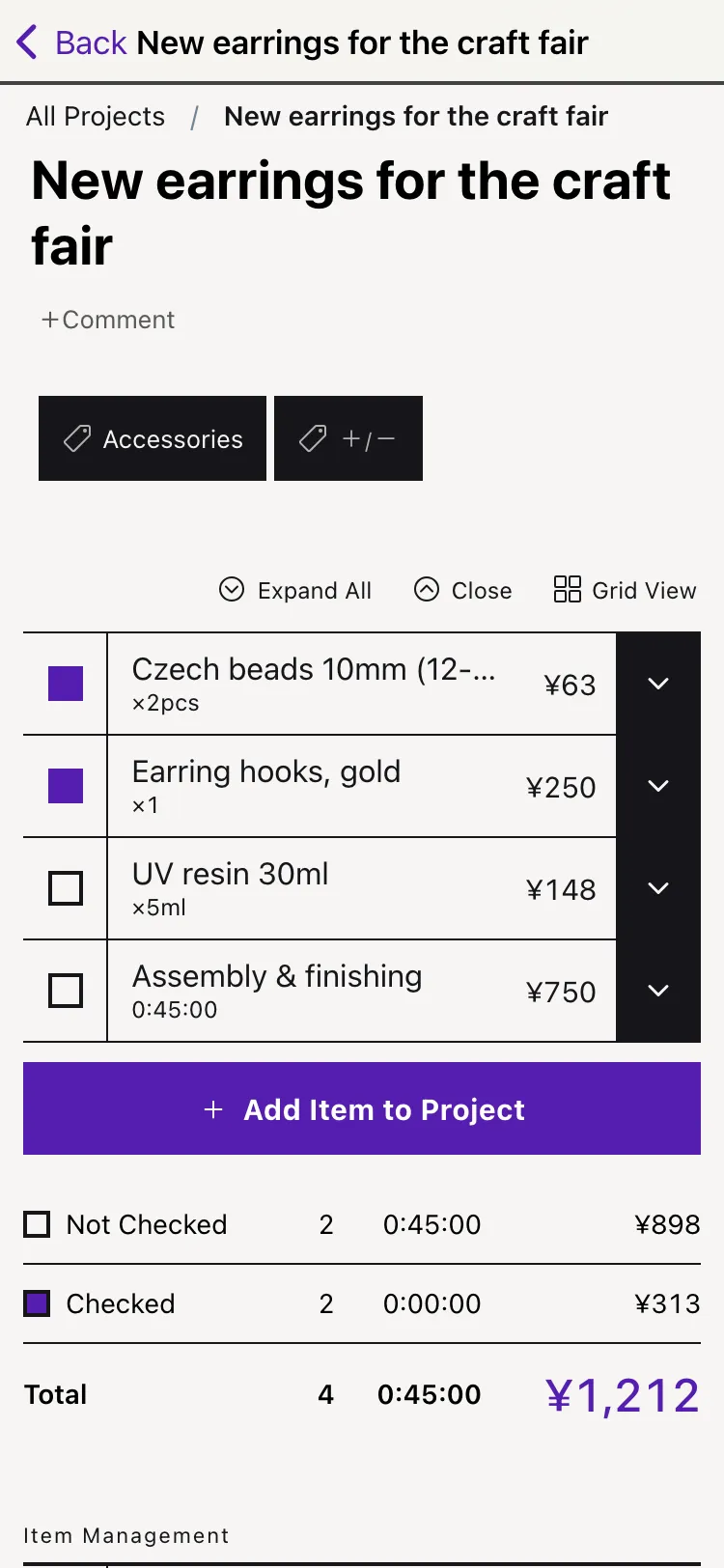
- Checkboxes — An item’s checkbox means “selected,” not “completed.” Use it to compare candidate materials; the project page shows a subtotal of just the checked items
Getting the Most from the Project Page
View options
- Expand All / Close — Open or close the details of all items at once. Handy for getting an overview
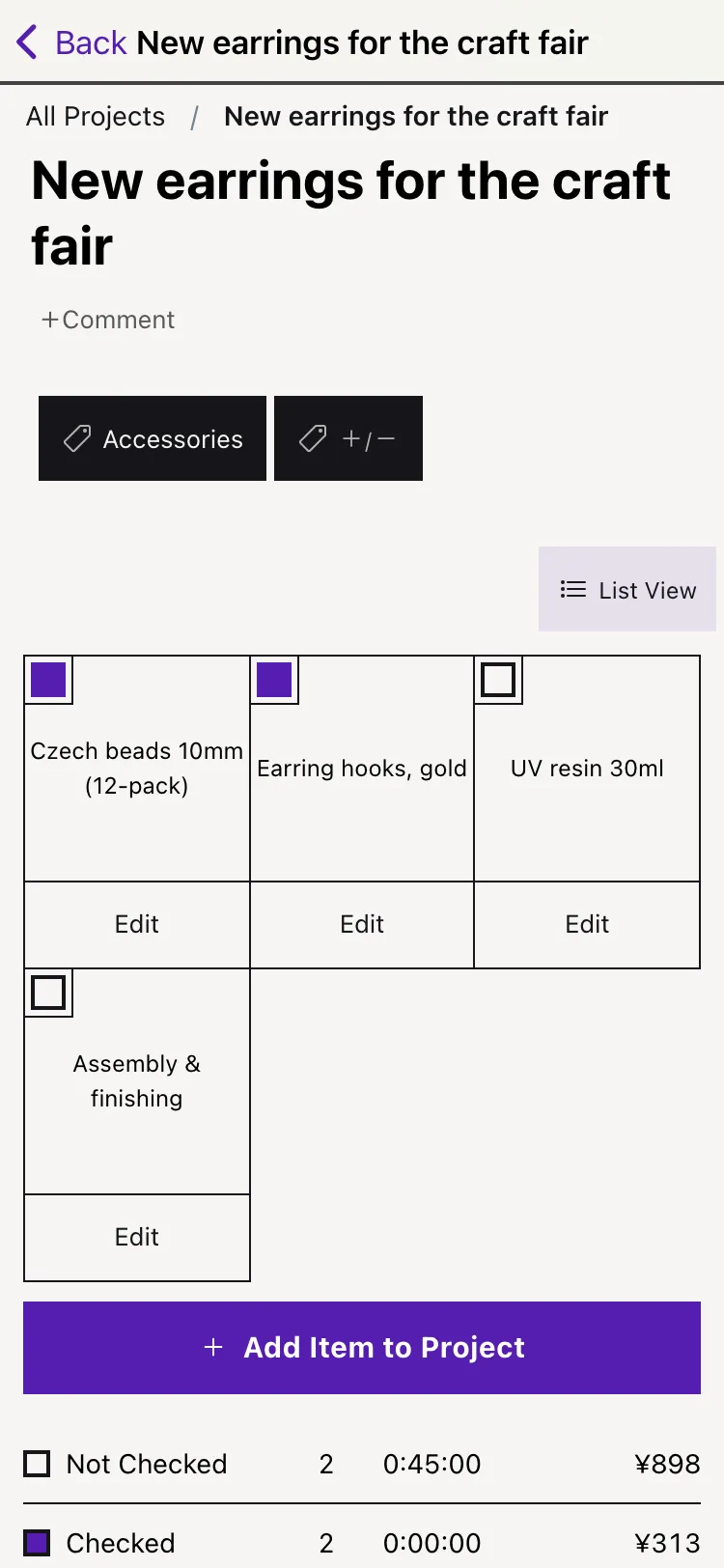
- Grid View / List View — Switch the item list to an image-focused grid. The view mode is saved per project and is also used as the initial view of the published page
- Editing in grid view — Tap the “Edit” button on a tile to open the inline editor in place
Totals
At the bottom of the page you’ll find subtotals for checked (selected) and unchecked items, plus the project’s total cost and total time. The project’s creation date — and completion date, if completed — are also shown.
Project menu
The menu at the bottom of the page offers the following operations.
Item Management
- Add Item to Project
- Add Multiple Images — Select several images to create items in bulk, one item per image
- Reorder Mode — Drag items to change their order
- Select Multiple Items — Delete, duplicate, or move several items to another project at once
Project Settings
- Mark as Completed — A switch that toggles between completed and in progress. Completing a project records its completion date
- Duplicate — Duplicates the entire project
- Publishing (paid feature)
- Delete
Organize with Tags
You can categorize projects by adding tags — for example by work category or production status.
- Filtering — Use the chips at the top of the project list to filter projects by tag
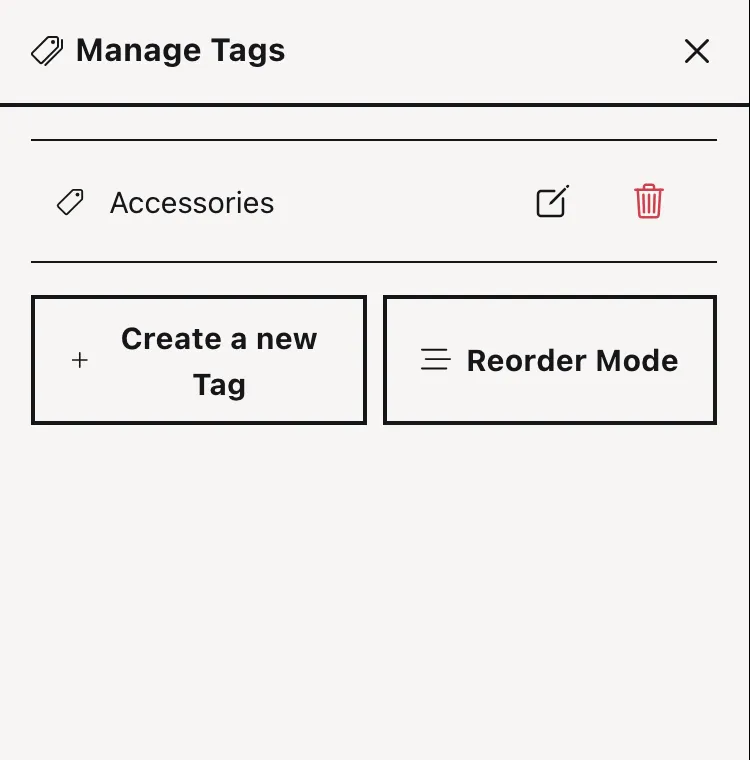
- Managing tags — Use “Manage Tags” on the project list to create, edit, delete, and reorder tags
- Linking to projects — Attach multiple tags from the tag area at the top of the project page
Settings
Open Settings via the gear icon at the top right of the project list.
Display Settings
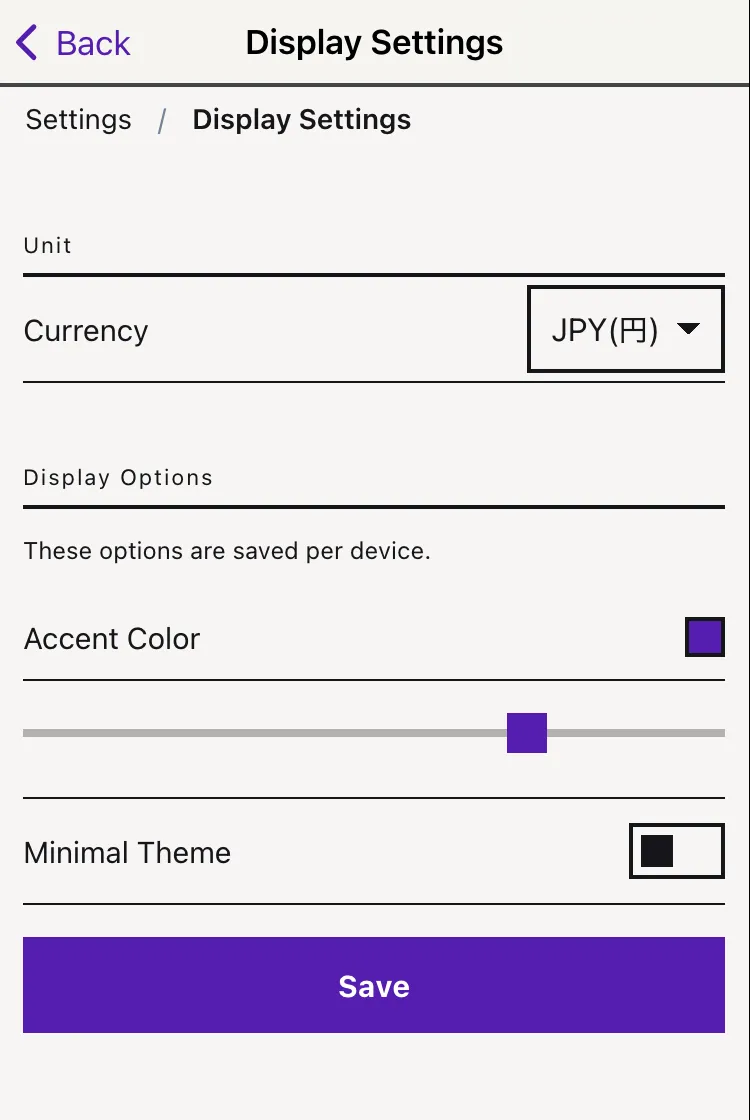
- Currency — Choose the currency used for subtotals and totals
- Accent Color — Change the app’s theme color freely with a slider. On iOS, you can also match the app icon to your accent color
- Minimal Theme — Hides button text labels and shows only essential information
Language Settings
- Switch between Japanese and English (detected automatically from your device language by default)
Your Account
- Change your email address (when signed in with email and password)
- Edit your public profile (public display name, profile image, contact URL)
- Export item data as CSV (UTF-8)
- Delete all data (Delete Account)
Changing your password
To change your password, use “Password Reset” on the sign-in screen.
Paid Features
Purchasing the paid plan (¥100/month; price may vary by region) unlocks the following features. The first month is a free trial.
Note: You can cancel or manage your subscription from “Subscription Management” in the App Store.
Search
Search projects by name, comment, and item name from the project list. Search can be combined with tag and publish-status filters.
Project Publishing
Publish a project page as a public web page that anyone can view without logging in. Copy the page URL and share it on social media and elsewhere.
- Publish, unpublish, and update the page from “Publishing” in the project menu
- Tag information is not published
- Updating the page keeps the same URL, but note that unpublishing and republishing changes the URL
Claude Integration (MCP)
Manage your Kanau projects and items by chatting with Claude (AI). See the Integrations Guide for details.
Integrations
The bookmarklet (which captures the page open in your browser as an item) and Claude integration (MCP) are covered in the Integrations Guide.
Account Deletion
When you delete your account, all data — including text and images — is permanently deleted. Deleted data cannot be recovered.
- Tap “Settings”
- Tap “Your Account”
- Tap the “Delete all data (Delete Account)” button
Contact
If you have any questions, please reach out on X (@pentaprogram) or through our contact form.